Showing posts with label better HTML email design. Show all posts

Monday, July 2, 2012

Email Marketing Best Practices: Use of Style Sheets in Email Newsletter

Many Web designers use Cascading Style Sheets (CSS) to simplify the coding process and ensure a consistent style throughout a Website. Use of CSS in HTML emails can be problematic, however, as many email clients will not render style sheets correctly.

Here is a handy reference on whether an email client renders certain types of style sheets correctly.

CSS and Rendering in email Clients

Avoid using CSS if possible; but if you must use them, choose the embedded styles also known as ‘inline’. Embed the style within the two container tags and not within the header because some email clients will truncate or strip out the header.

So, add the style within the body tags, like this:


Main Text


Monday, May 21, 2012

Email Marketing - Using Forms in HTML Emails


We generally discourage the use of forms in email to prevent delivery or usability problems. However, at times you might still need to use a form in an email instead of directing readers to your Website. Consider these factors before you use a form in your next email message.

Those recipients of your email who use Hotmail or those who use Outlook will not be able to use the form because:


  • Hotmail displays the form but strips all values from your
    tag and removes the name values of all form elements, rendering the form useless.
  • Hotmail recipients can complete the form, but nothing will happen when they hit the submit button so they will not know it has not been received .
  • Outlook has limitations when viewing forms in the mail client. Outlook can not see data in a "form tag", when a form is passed via email and viewed in Outlook as outlook strips out form elements.


You can refer to these articles:

http://help.isu.edu/index.php?action=knowledgebase&catid=38&subcatid=39&docid=1058
http://www.sitepoint.com/blogs/2007/01/10/microsoft-breaks-html-email-rendering-in-outlook/

Some email clients do not support forms that use “POST” method, which allows form data to appear within the message body. Instead you will need to replace it with the “GET” method, which will write all form content to the query string of the page to which the form is posted.

For example:

Most email clients that provide a preview pane don’t allow you to tab between form elements. This means that when a recipient completes the first field in your form and clicks the TAB key, the focus is automatically shifted to another part of the software. This hinders usability and can confuse your recipient.

Friday, May 18, 2012

24 Dos and 8 Don'ts for a better HTML based Email Newsletters

Ever wondered if you had a quick guide of Dos and Don'ts for an HTML based email newsletter. Here we have compiled one that serves as a ready reckoner.

HTML Coding Do’s
  1. Code HTML emails as a single Web page with the basic <HTML>, <HEAD>, <TITLE>, and <BODY> tags.
  2. Code emails by hand where possible, as WYSIWYG (What You See Is What You Get) editors typically add extra code that creates havoc with certain email clients. If you must use an editor, use Dreamweaver or Homesite, which do not add extra code to the design process.
  3. Use HTML tables for the design layout.
  4. Keep emails at a fixed width of between 500-620 pixels wide.
  5. Instead of defining percentage widths use fixed widths. While this is not optimal, because people can and do resize their email windows when reading, sometimes using a fixed width is the only way for a layout to display properly in multiple email software.
  6. Use only the ASCII character set. More advanced word-processing software often inserts odd characters, such as the trailing dot characters or smart quotes (curly instead of straight), which can hamper display or create delivery problems in some email software.
  7. If you use CSS, include inline styles. Do not link to an external style sheet nor use embedded styles, as this code is often stripped out by email clients, creating display problems.
  8. Make sure all tags have supporting closing tags. The most common HTML errors come from not having a closing </FONT> tag or having open <TD> or <TR> tags in the HTML. While your HTML might render properly in a browser, these errors can cause problems with many email clients.
  9. Use the HTML table attributes within the TABLE and TD tags.
  10. For example: to set the table border=0, valign=top, align=left (or center, if that is the design), cellpadding=0, cellspacing=0, and so on. This primarily helps older email readers to display the html email in a minimally-acceptable way.
  11. Put general font style information in the table TD or DIV or P tags closest to the content. This can mean repetitive style declarations in multiple TD cells or DIV’s or P tag. Put font style definitions into heading (e.g. H1, H2), P, or A tags only when necessary.
  12. Use DIVs sparingly to float small boxes of content and links to the right or left inside a table TD cell. Google Mail appears to ignore the CSS Float property but Yahoo! and Hotmail work fine. Outlook 2007 ignores floats.
  13. Sometimes it is better to code a more complex table layout than rely on the Float property. Since email is easy to clutter, ask that the design put the floated content in the narrow side column. Floats are the one part of an email design that might require the design be reworked.
  14. Animated GIF files are acceptable, but use them sparingly.
  15. Use of images maps is acceptable.
  16. If there is a spacing issue with the columns in the email design, first tweak the cellpadding and cellspacing attributes of the HTML tables. If that does not work, use CSS margin and padding attributes. HTML spacing works better with older email software than spacing with CSS.
  17. If an image is cut up and spread across several HTML table cells, test the email with many test accounts. Sometimes it looks great in Outlook but shifts by 1 pixel or more in Hotmail and other services. Also consider putting the image as a background image on a new html table that encases all the table rows and columns that would display parts of your background image. sometimes this achieves the same effect as cutting an image up but with less code and better results.
Note that Outlook 2007 does not display background images. Be sure to test your email code with your target email client software.
  1. If you use background images, use the HTML table attribute background= instead of CSS. It works more consistently across email software except Outlook. Define appropriate bgcolor for the TD’s so that the color is displayed when the images are blocked.
  2. Be sure all your images use the alt tags, height, and width parameters. This helps with Google Mail as well as when a reader has their images turned off. However, Outlook 2007 does not recognize the alt= parameter.
  3. Use the target=”_blank” attribute for the HTML A tags so that people reading with a webmail service don’t have the requested page appear within their webmail interface.
  4. Avoid a big image above the fold in the email. This is another classic spammer practice and can increase the likelihood an email will be tagged as spam.
  5. Make sure your email content displays fine without images.
For example: if you use a background image to provide a background color with white font color over it, make sure the default background color for that part of the HTML table is dark, not white. Also be sure your alt=, height=, and width= parameters are set for images so they can help readers understand your content without images. Turning off your images will help you catch these issues and ensure the HTML email will display effectively if people see your email with images off.
  1. Test your HTML code. Make sure your code conforms to World Wide Web Consortium (W3C) HTML standards
  2. When sending a multi-part message, remember to create the text version. Most email clients send HTML as a multi-part alternative by default. Failing to include the text part of the message can cause some filters to treat your email as spam.
 
HTML Coding don’ts
  1. HTML should not contain any JavaScript or any other script embedded in it. Some email clients do not support JavaScript, and others view it as a security risk.
  2. Avoid using CSS for positioning. The support is very limited and will, more than likely, result in a broken layout for most of your recipients.
  3. Avoid nested tables if possible. Some email clients, especially Lotus Notes and Netscape Messenger, might not render them correctly.
  4. Do not use canvas background images. Most email clients do not display canvas background images. Background images for individual table cells are generally acceptable but might not appear in some clients such as Lotus Notes.
  5. Do not apply attributes to the <BODY> tag. Attributes placed in the <BODY> tag are often flagged by spam filters and increase the likelihood of your message getting bulked or blocked.
  6. With multiple embedded images, which also might cause the email to be blocked
  7. Do not use EMBED tags.
  8. Avoid embedding forms, such as surveys, into emails. Some email clients such as Hotmail might not pass the data through to the collection point. Instead, link to a Web form through which the recipient can complete the survey.
   

Thursday, May 17, 2012

Better Layout for a HTML Email Newsletter


   A better layout of a HTML Email creative provides a clear positioning of your content and a structured easy reading for the recipient.

Here are few good tips for well thought out HTML Email Creative.

Determining the layout design:

  1. Single column and two-column layouts work best for emails because they control the natural chaos that results when a lot of content is pushed into such a small space as email. Use a consistent HTML template.
  2. Add in a header that contains logo, view online links if the email is not rendered properly on recipient email client, instructions to add sender email id to recipients address book (improved deliverability), etc
  3. Body or the main section that contains the main content of the mailer.
  4. Footer should contain unsubscribe, contact us and forward to friend links and sender’s general terms and policies.

We analysed one of the best email from a top retailer in USA, Target Corporation.

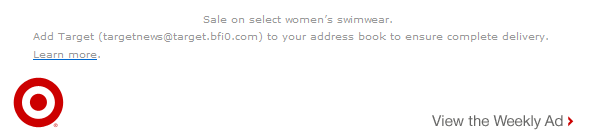
You can notice the email layout in the images below. The header has all relevant detail of add to address book for inbox delivery, view online version, brand logo, etc.


The body of the mailer has a consistent look with a single column view, with a clear offer and an actionable main link. You can also notice actionable links to other categories of products on the retailer website. You would also notice more offers, clearance sales, and other attractive discounts at the bottom of the main offer.


You would notice multi-channel contact points for engagement on other digital channels and fine print of offer details, etc.


You would notice in the footer below, all relevant details on why you are receiving this email, to opt-out from further communications, company policies, etc.


Hope you find these HTML Newsletter design tips helpful.  And make your subscribers hooked to read your content and further actions.